Webmail Access (Internal)
Overview
Our webmail interface is powered by SmarterMail. Clients can access their email from any browser without configuring an email client.
Client Access Instructions
Accessing Webmail
Step 1: Navigate to Webmail
- URL:
https://mail.alfieweb.com - Works on any device with a web browser
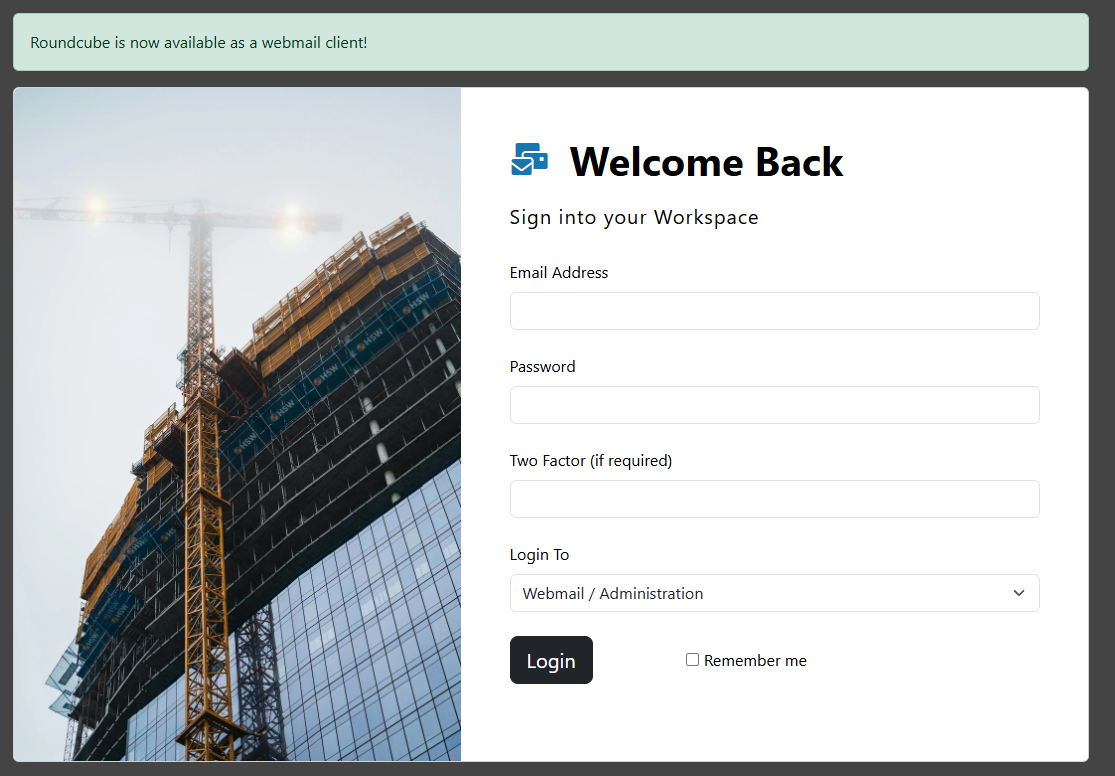
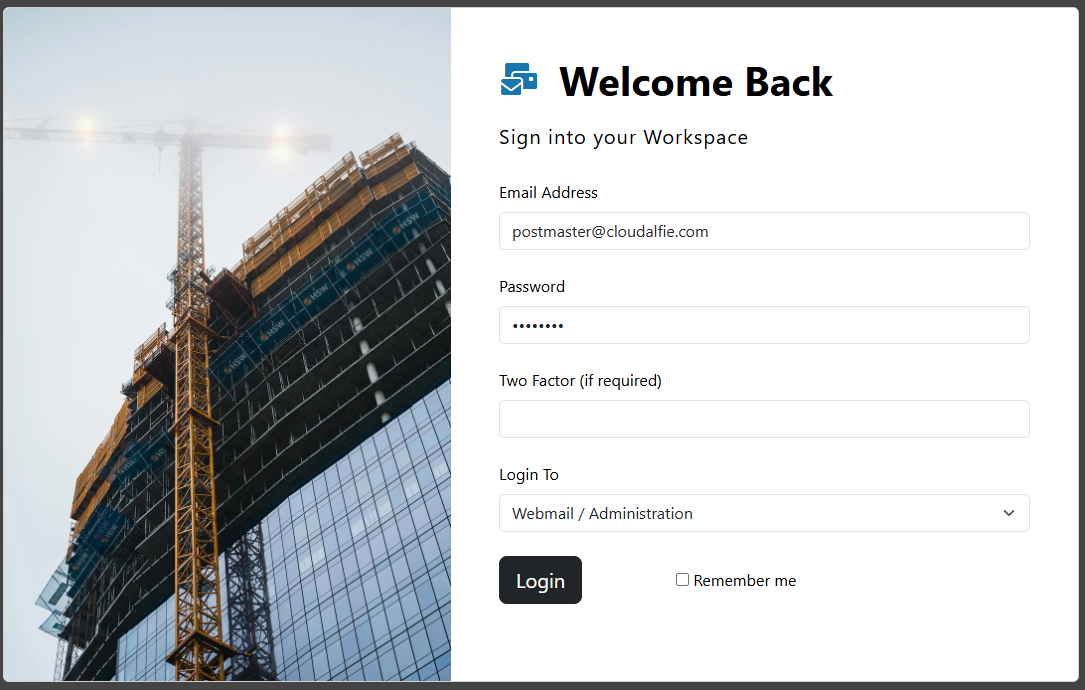
Step 2: Login
- Username: Full email address (e.g.,
user@clientdomain.com) - Password: Password provided in setup email
Step 3: Access Inbox
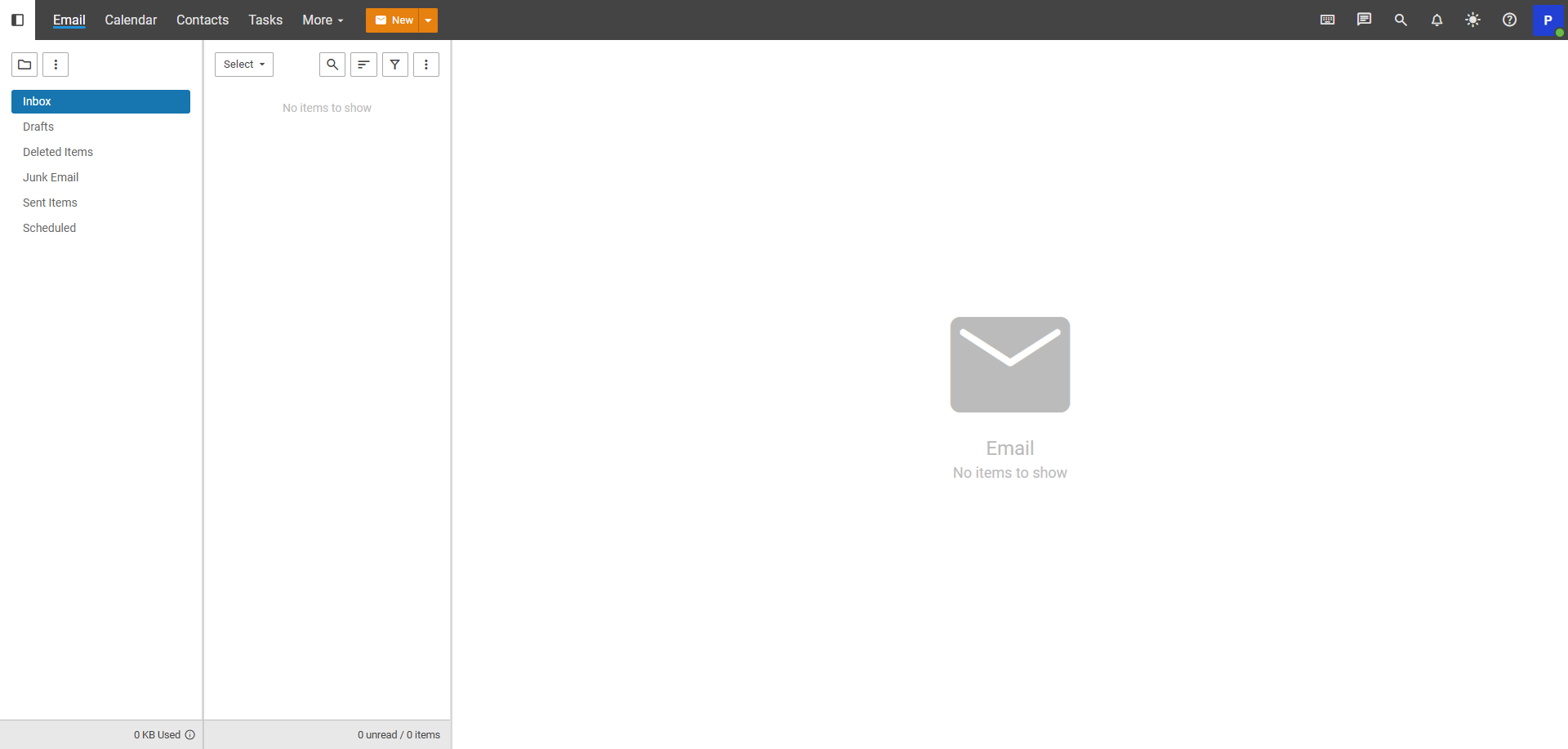
- After login, client sees their inbox
- Can send/receive emails
- Manage contacts and calendar
- Configure spam settings
- Create folders/labels
For Team: Webmail Support
Common Client Questions
Q: "How do I access my email?" Provide:
- URL:
https://mail.alfieweb.com - Username: Their full email address
- Password: From welcome email
- Link to this guide
Q: "Can I access email on my phone?" Yes, two options:
- Use mobile browser to access webmail
- Configure native email app (see mailbox creation guide)
Q: "I forgot my password" Team action:
- Login to SmarterMail admin
- Reset password for their mailbox
- Send new password via portal ticket
Webmail Features Clients Can Use
Email Management:
- Send and receive emails
- Attach files (up to 50MB per attachment)
- Create folders for organization
- Set up email filters/rules
- Mark emails as read/unread/flagged
Contacts:
- Create and manage contacts
- Import contacts from file
- Organize into groups
- Sync with email clients
Calendar:
- Create events and reminders
- Share calendars
- Subscribe to external calendars
- Set up recurring events
Spam Management:
- Mark emails as spam/not spam
- Configure spam filter sensitivity
- Whitelist/blacklist senders
Settings:
- Change password
- Set up vacation/auto-reply
- Configure email signature
- Set up email forwarding
Troubleshooting
Client Can't Login
Check:
- Using correct URL (
https://mail.alfieweb.com) - Using full email address as username (not just username)
- Password is correct
- Mailbox is active in SmarterMail admin
- Browser cookies enabled
- Not using outdated cached credentials
Solution:
- Verify credentials in SmarterMail admin
- Reset password if needed
- Clear browser cache/cookies
- Try incognito/private browsing
Login Shows "Authentication Failed"
Causes:
- Wrong password
- Mailbox suspended/inactive
- Account locked (too many failed attempts)
Solution:
- Verify mailbox is "Active" in SmarterMail
- Reset password via admin panel
- Check for IP blocks in SmarterMail logs
Webmail Loading Slowly
Causes:
- Large mailbox (thousands of emails)
- Client's internet connection
- Server load
Solution:
- Advise client to archive old emails
- Empty trash folder
- Check server resources
- Suggest using IMAP client for large mailboxes
Can't Send Emails
Check:
- Mailbox has sending permissions enabled
- Not over quota
- Not hitting rate limits
- Attachment size under limit (50MB)
- Check SmarterMail logs for errors
Common Issues:
- Over daily send limit (default 500/day)
- Mailbox suspended
- Attachment too large
- Spam score too high
Can't Receive Emails
Check:
- MX records configured correctly (see DNS guide)
- Mailbox not over quota
- Sender not blacklisted
- Check spam folder
- Verify in SmarterMail mail logs
Test Receiving:
- Send test email from Gmail/Outlook
- Check if it appears in webmail
- If not, check logs in SmarterMail admin
"Mailbox Full" Error
Solution:
- Check quota in SmarterMail admin panel
- Options:
- Increase quota (if plan allows)
- Ask client to delete emails and empty trash
- Archive old emails
Emails Going to Spam
For senders:
- Verify SPF, DKIM, DMARC records configured (see DNS guide)
- Check spam score in SmarterMail logs
- Avoid spam trigger words in subject/body
- Ensure valid "From" address
For receivers:
- Check spam folder
- Mark as "Not Spam" to whitelist sender
- Add sender to contacts
Advanced Features
Setting Up Vacation/Auto-Reply
Guide clients:
- Login to webmail
- Click settings (gear icon)
- Select "Filters"
- Create vacation auto-response
- Set active dates
- Compose message
- Save
Creating Email Filters
- Settings → Filters
- Click "Create Filter"
- Set conditions (from, subject, etc.)
- Set action (move to folder, mark as read, forward, etc.)
- Save
Example: Move all emails from "newsletter@example.com" to "Newsletters" folder
Changing Password via Webmail
Clients can change their own password:
- Login to webmail
- Settings → Password
- Enter current password
- Enter new password (twice)
- Save
Email Signatures
- Settings → Identities
- Select email identity
- Enter signature in HTML or plain text
- Save
- Choose when to include (new emails, replies, all)
Mobile Access
Accessing Webmail on Mobile
- Works in any mobile browser
- Responsive design adapts to screen size
- URL:
https://mail.alfieweb.com - Save to home screen for app-like experience
Native Email App Setup
If clients prefer native app, see Creating Mailboxes guide for IMAP/SMTP settings.
Security Best Practices
For Team to Advise Clients:
- Use strong, unique password
- Enable 2FA if available
- Don't share passwords
- Log out on shared computers
- Be wary of phishing emails
- Verify sender before clicking links
- Don't open suspicious attachments
Admin Access
For Team: SmarterMail Admin Panel
Admin URL: https://mail.alfieweb.com/admin
From here you can:
- Create/manage mailboxes
- View mail logs
- Check system status
- Manage domains
- Configure spam settings
- View quotas and usage
- Check mail queue
Quick Reference
| Client Issue | Team Solution |
|---|---|
| Can't login | Verify credentials, reset password |
| Forgot password | Reset via SmarterMail admin |
| Can't send | Check quota, SMTP enabled, rate limits |
| Can't receive | Verify DNS, check quota, check logs |
| Emails in spam | Check SPF/DKIM/DMARC, whitelist sender |
| Slow webmail | Clear mailbox, archive old emails |
| Need to change password | Guide to Settings → Password |
Support Resources:
- Send clients to this documentation
- Use portal tickets for password resets
- Check SmarterMail logs for delivery issues
- Test with mail-tester.com for spam score